Hudl CSV Import: Bring Your Breakdown Data in Minutes
A step-by-step Hudl CSV import: map Hudl columns, keep your custom columns, split a season into games and link plays to film. Free in Hashmarks.
By Hashmarks4 min readScouting
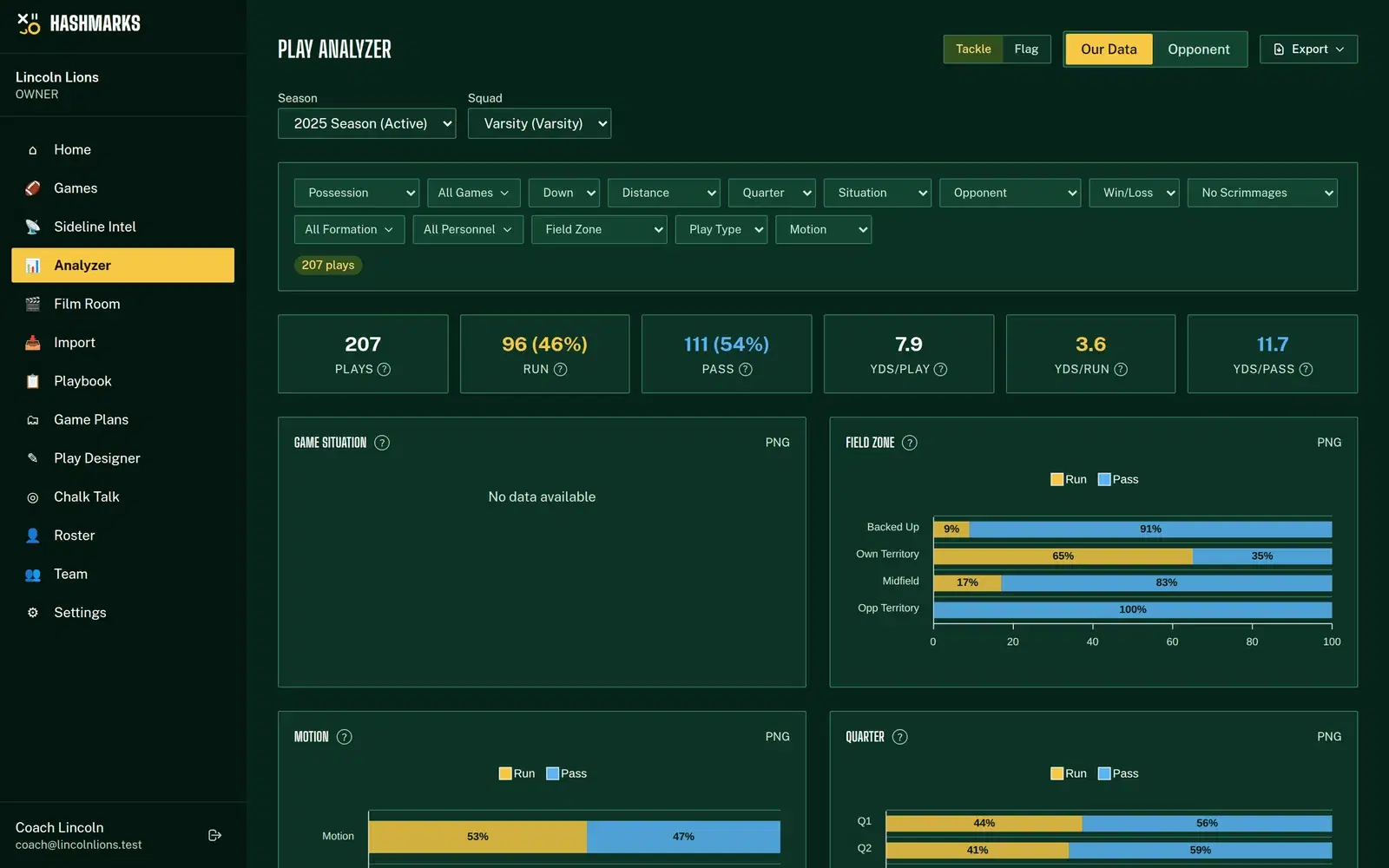
You've already done the work. Somebody on your staff, or a breakdown service, tagged every play from last season: down, distance, formation, play, result. A Hudl CSV import into Hashmarks puts that work to use in minutes: tendencies by down and distance, success rate by play call, scouting reports, and clips that line up with their plays.
This guide walks through the import step by step, and explains what happens to every column, including the ones your staff made up.
What you need
- A breakdown exported as a CSV file, one row per play. Hudl exports work as-is. So does any spreadsheet saved as CSV.
- The four columns every import needs: play number, quarter, down and distance.
- For a whole season: an opponent column (and ideally a date column) so the plays can be split into games.
Files up to 50 MB are supported, which covers a full season with room to spare.
Step 1: choose what you're importing
Go to Import → CSV Import and pick one of three modes:
- Single Game. One game's plays, into a game you pick or create.
- Full Season. Many games in one file. Map the opponent column and the games are created and split out for you.
- Scouting Data. An opponent's plays, for scouting. Their tendencies then show up in the Analyzer when you switch to Opponent.
Step 2: let the columns map themselves
Hashmarks recognizes Hudl's column names, like ODK, DN, DIST, YARD LN, HASH, OFF FORM, OFF PLAY, PLAY TYPE, RESULT and GN/LS, and maps them to the matching play fields. Every mapping is a dropdown, so you can fix any that guessed wrong, and you can map columns from any other spreadsheet the same way.
Then check the preview of the first rows. If formations show up in the play-call column or yards look like quarters, fix the mapping before anything is saved.
Step 3: know that nothing gets dropped
This is the part coaches worry about, and the rule is simple: an import never drops data unless you tell it to.
- Standard columns map to Hashmarks fields. Hudl columns without a field of their own (series, backfield, pass zone, defensive personnel, tacklers, kick and return yards and more) are kept as named extras on each play.
- Your custom columns, the ones your staff invented ("Read", "Protection", "Blitz Y/N"), are stored with each play too.
- Values that don't parse, like a gain of "15+" or a down of "3rd", aren't thrown away. They're kept alongside the play.
- A column is only left out when you choose Skip for it.
Step 4: import and check the results
Press Import. A progress bar shows rows imported, skipped and with errors. If lots of rows error, it's almost always the required columns: make sure play number, quarter, down and distance are mapped and hold numbers. If plays landed in the wrong game on a season import, map the opponent and date columns and run it again.
What you can do with imported plays
Tendencies and scouting reports
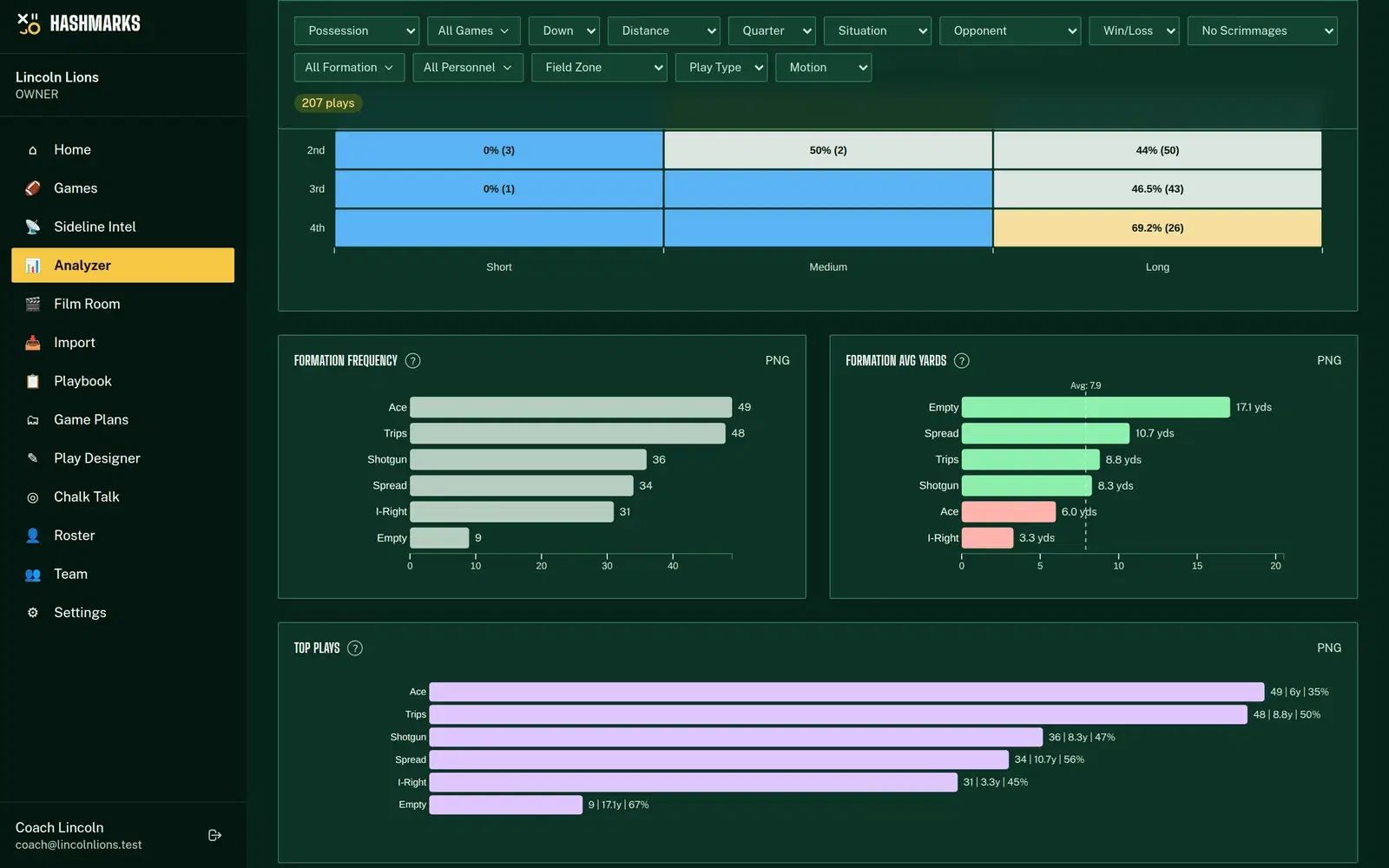
Imported plays feed the same tools as plays you chart live. Filter the Play Analyzer by down, distance, field zone, formation or personnel; read success rate by play call and the advanced stats; and export the whole thing as a scouting report. Import an opponent and the Sideline Intel board shows their down-and-distance tendencies before kickoff.
Clips that carry their play data
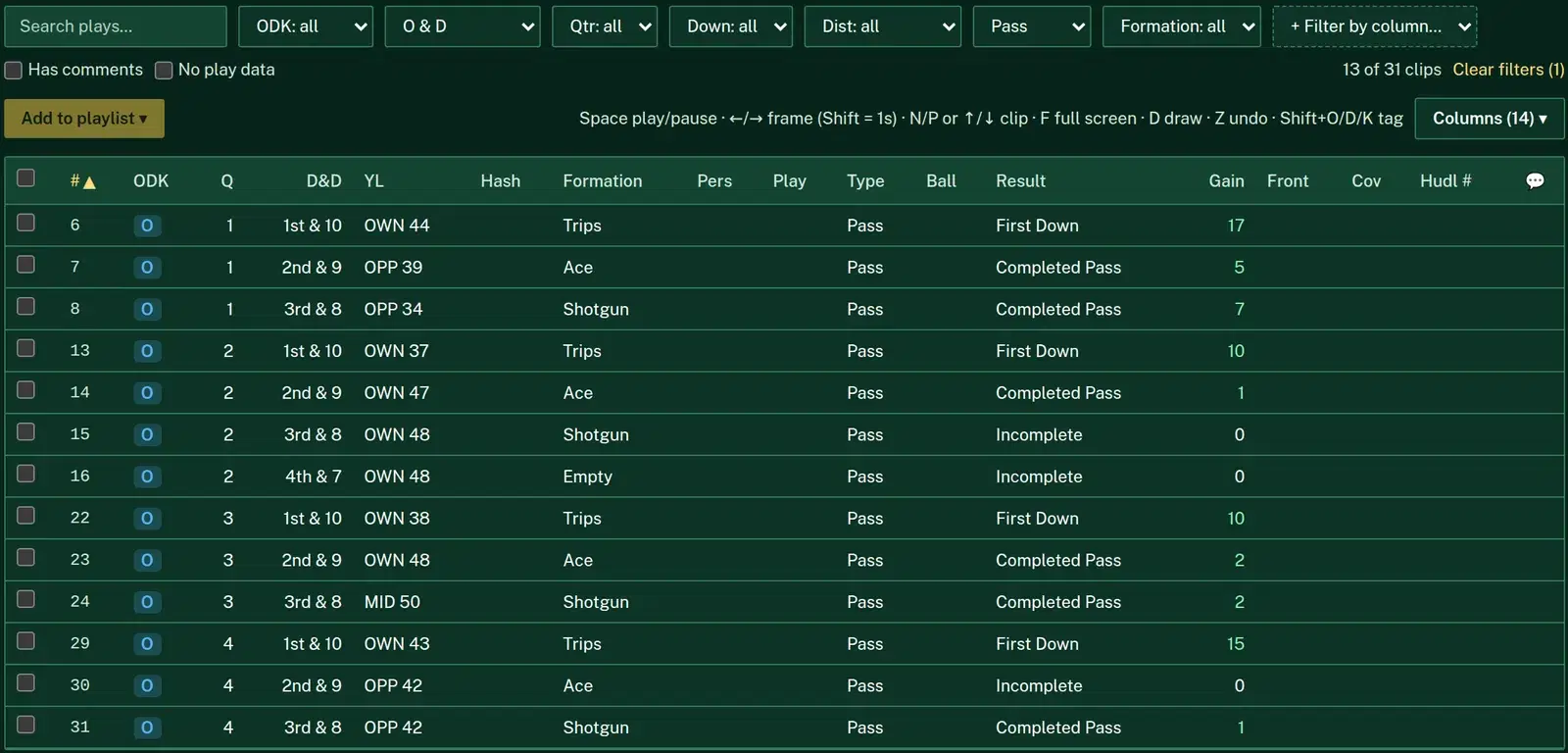
Upload the game's clips in the Film Room and each clip lines up with its play. If your imported plays carry a Hudl clip number, "Sync plays to film" links each play to exactly that clip. Your custom columns become columns you can show, sort and filter in the clip list. See free football film breakdown.
Keep Hudl, or don't
You don't have to choose. Plenty of programs keep Hudl for video and use Hashmarks for live charting, sideline tendencies, play design and quizzes, all free. Importing your breakdown is how you bring the history with you, whichever way you go.
How to do it in Hashmarks
- Request free access and add your season.
- Export your breakdown as a CSV.
- Go to Import → CSV Import and choose Single Game, Full Season or Scouting Data.
- Check the column mapping and the preview. Choose Skip only for columns you really don't want.
- Import, then open the Analyzer (Our Data or Opponent) to see the tendencies.
- Optional: upload the clips and use Sync plays to film.
The CSV import help page has the column reference and fixes for common errors.
Tips for a clean import
- One header row. Delete title rows above the column names before exporting.
- Consistent names. "Trips Rt" and "TRIPS RIGHT" are two formations to any computer. Clean them up once and every chart gets better.
- Import scouting data into its own game so their plays never mix with yours.
Bring your breakdown over free
Your breakdown data already has the answers; it just needs a place to show them. Request free access and run your first Hudl CSV import this week. For the side-by-side, see the free Hudl alternative page or the comparison on our home page.