Free Football Film Breakdown: Clips, Tags, Telestration
Free football film breakdown: every clip linked to its play data, ODK tags, telestration, time-pinned coaching points and playlists in Hashmarks.
By Hashmarks4 min readFilm study
Sunday afternoon, a laptop, a stack of clips and a legal pad. You watch the play, pause, back it up, write "3rd & 6, Trips, slant, +4" and move on. Then you do it 60 more times. Football film breakdown is where most of a staff's week goes, and too much of that time is typing things the stat crew already knew on Friday.
Hashmarks Film Room starts from the other end: the play data you charted during the game is already attached to the clips. You spend the time coaching, not transcribing.
What slows film breakdown down
Most of the hours go to three jobs:
- Tagging. Down, distance, field position, formation, play and result for every clip.
- Finding. "Show me every 3rd down pass" means scrolling and scrubbing.
- Teaching. Drawing on a frame, writing the coaching point and getting it to the right players and coaches.
If the tagging is already done, the other two get fast.
How Film Room works
Upload a whole game of clips
From Import → Video Import, pick the game and drop in its clips: select many files, a whole folder, or drag and drop. Clips are put in order by file name, so numbered clip files land in play order. You can upload a sideline angle, an end zone angle or both.
Every clip linked to its play
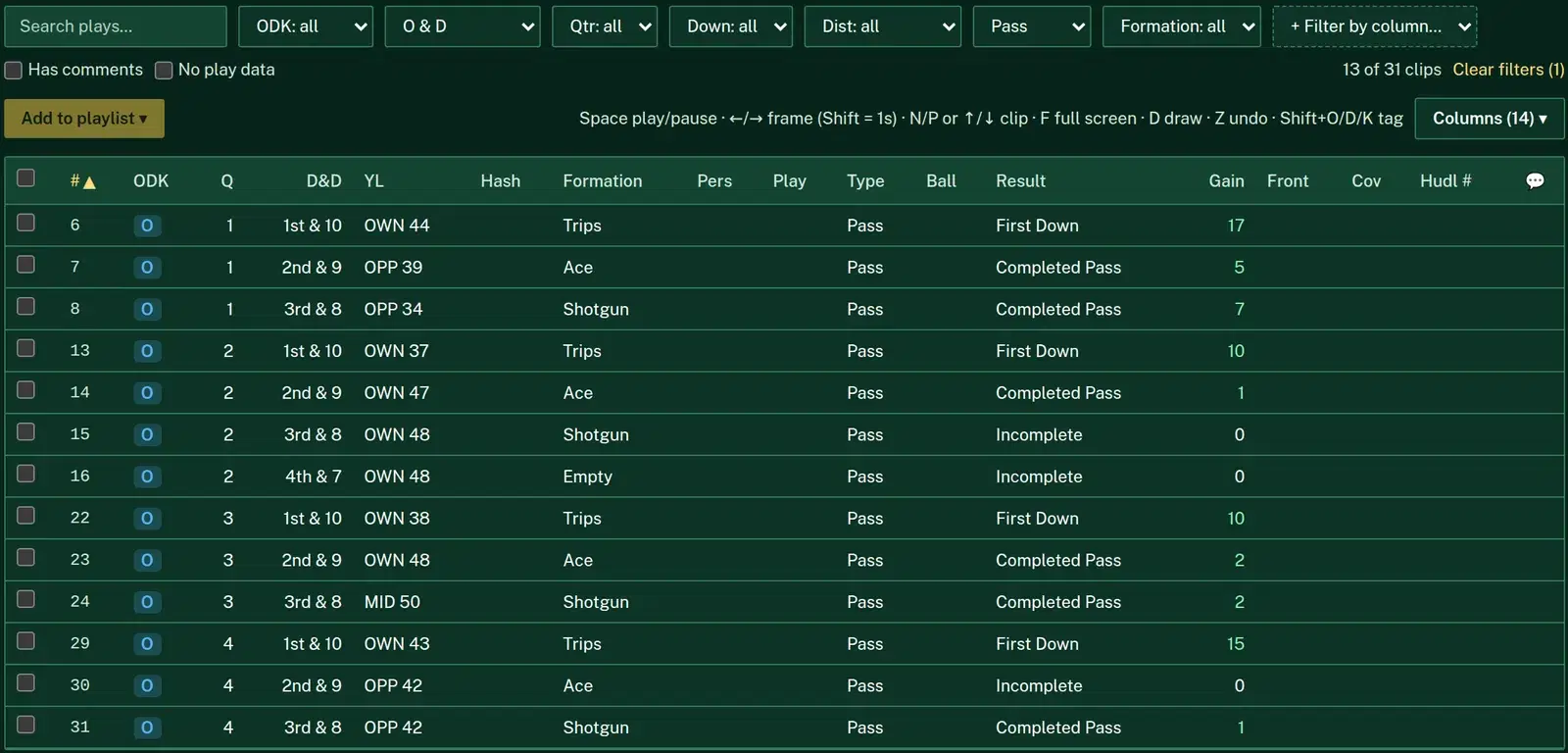
When the clips are in, Hashmarks lines them up with the plays logged for that game in the Play Tracker or brought in by CSV import. Each clip then carries its play's data: quarter, down and distance, yard line, hash, formation, personnel, play, type, ball carrier, result, gain, front and coverage.
If the film and the play log don't match up one-to-one, Sync plays to film gives you three ways to link them:
- By Hudl clip #, when your imported plays carry a clip number
- In order, by ODK tag, so offensive plays fill the O clips, defensive plays the D clips and special teams the K clips
- In order, every clip, when both the film and the log have every snap
You can also re-link a single clip to a different play from a dropdown under the player.
A clip list driven by your data
The clip list is a grid you can sort and filter the way a coordinator thinks: search, ODK, quarter, down, distance, play type, formation, or any other column. Check "Has comments" to find the clips your staff has already marked up, or "No play data" to find clips that still need a play linked. Choose which columns to show. Your choice is remembered in your browser, and it includes custom columns you imported from a CSV.
Filter to "3rd down, pass" and the player steps through exactly those clips, in that order.
ODK tagging in one keystroke
Tag the current clip as offense, defense or kicking with Shift+O / D / K, or check a set of clips in the list and tag them all at once.
A player built for film study
- Switch between sideline and end zone angles on the same clip
- Step frame by frame with the arrow keys (Shift jumps a second)
- Slow motion down to 0.25×, or speed up to 2×
- Auto-next plays the list back to back, and Stop at drawings pauses where a coach drew on the film
- Full screen with F. On iPhone Safari, full screen uses the phone's own video player, so drawings aren't shown there.
Telestration and coaching points
Press D to draw on the frame: arrow, line, freehand, circle or box, in several colors, with Z to undo. Save the drawing as a comment and it's pinned to that moment in the clip. Text coaching points can be pinned to the current time too, so "watch the backside end here" opens on the right frame for everyone who watches it.
Coaches and assistants can comment. Coaches, admins and owners can edit tags and play data.
Fix the data from the film
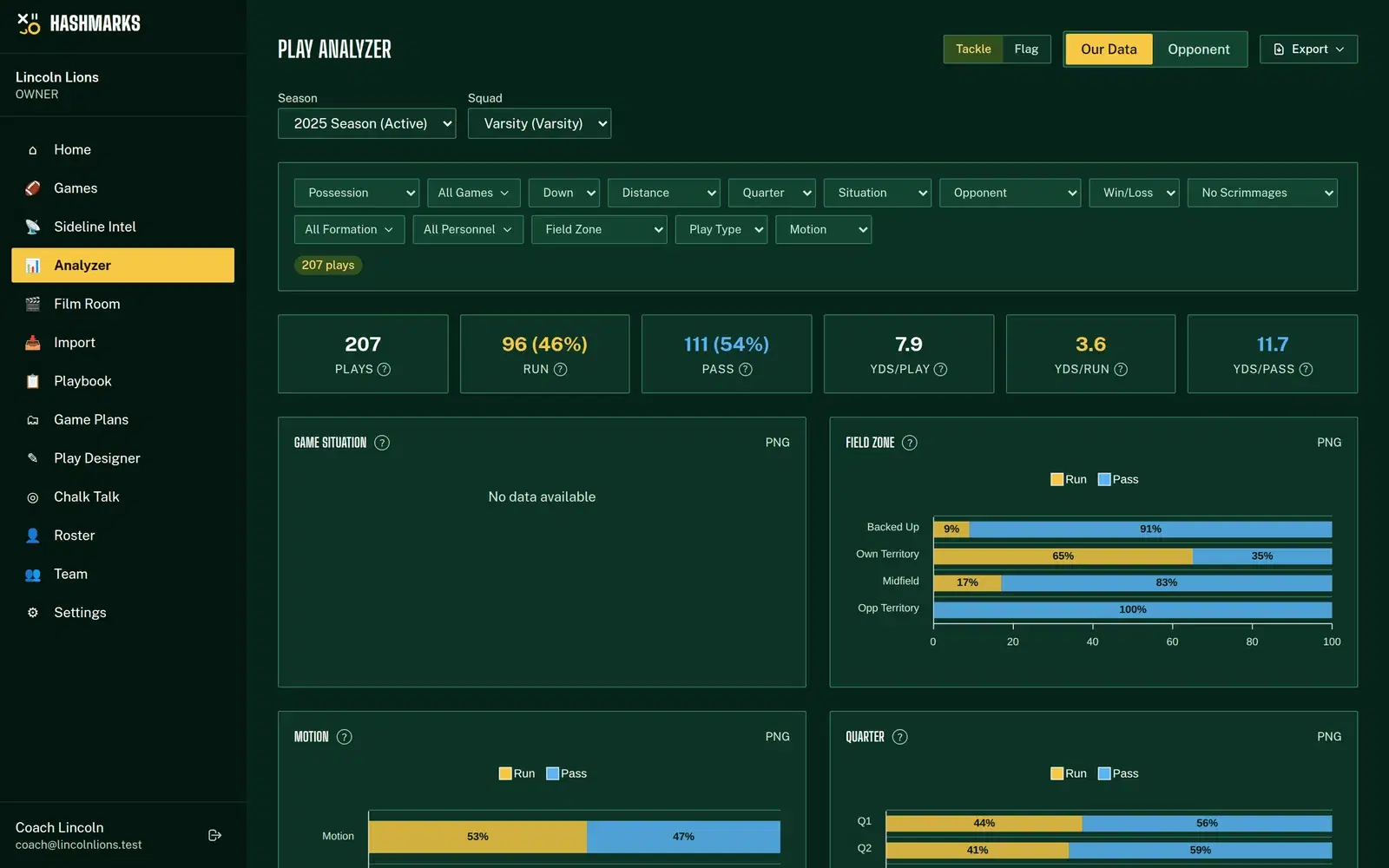
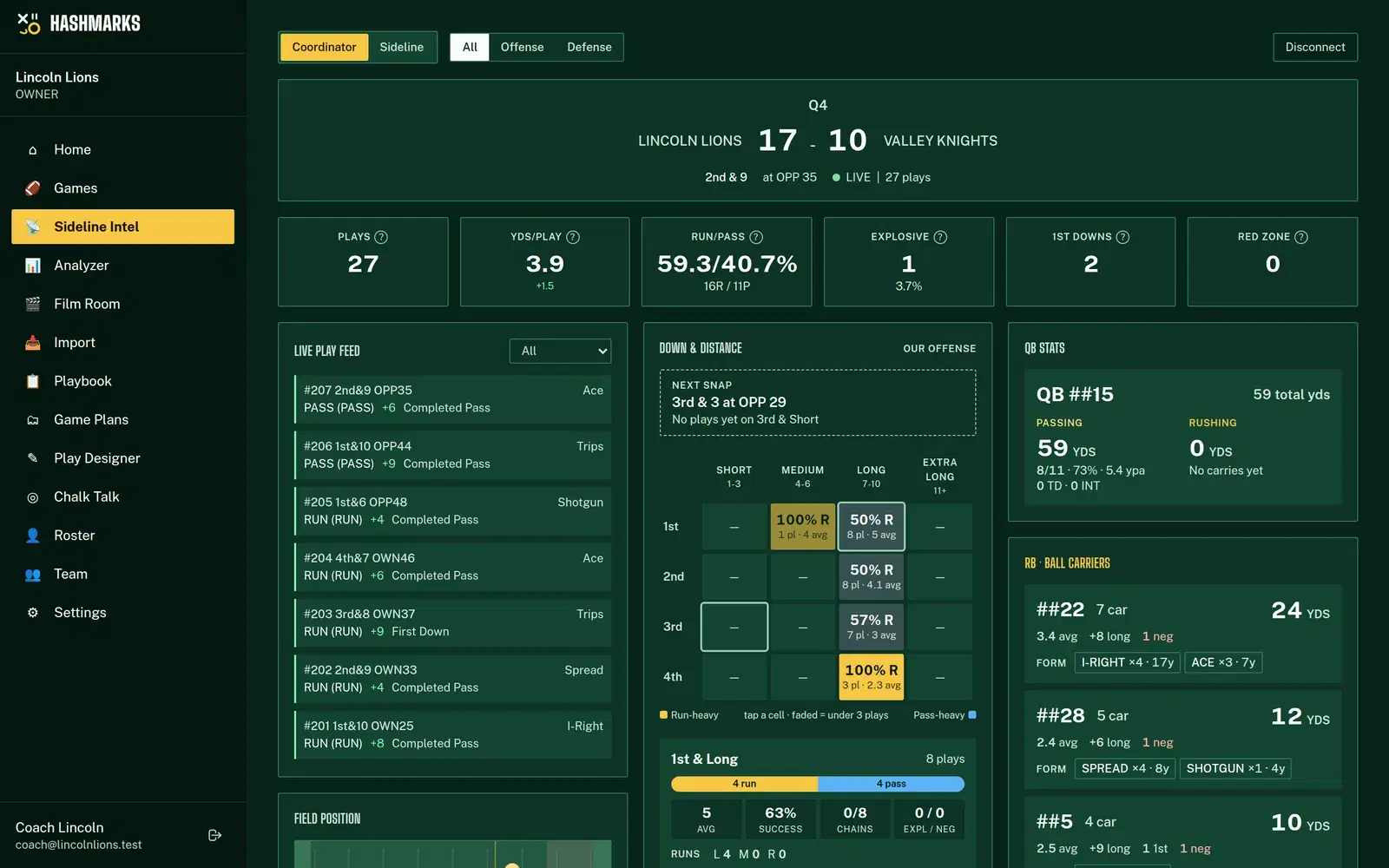
Spotted a wrong result or a missed formation while watching? Edit play opens every field on the linked play right under the player. The fix flows into Sideline Intel and the Play Analyzer too, because it's the same play.
Playlists
Check clips in any game and choose Add to playlist: "Red zone vs Cover 1", "Missed tackles", "Kickoff coverage". Playlists can mix clips from different games, and you can reorder or remove clips inside one.
Dictate a breakdown while you watch
No clips uploaded? You can still break down a game from film you watch somewhere else. Film Review (from the game page) lets you dictate one play at a time while the video plays in another window. Each play you say is parsed and saved, and the next down and distance are filled in for you. It's the fastest way to turn film you already have into data for tendencies and scouting reports.
How to do it in Hashmarks
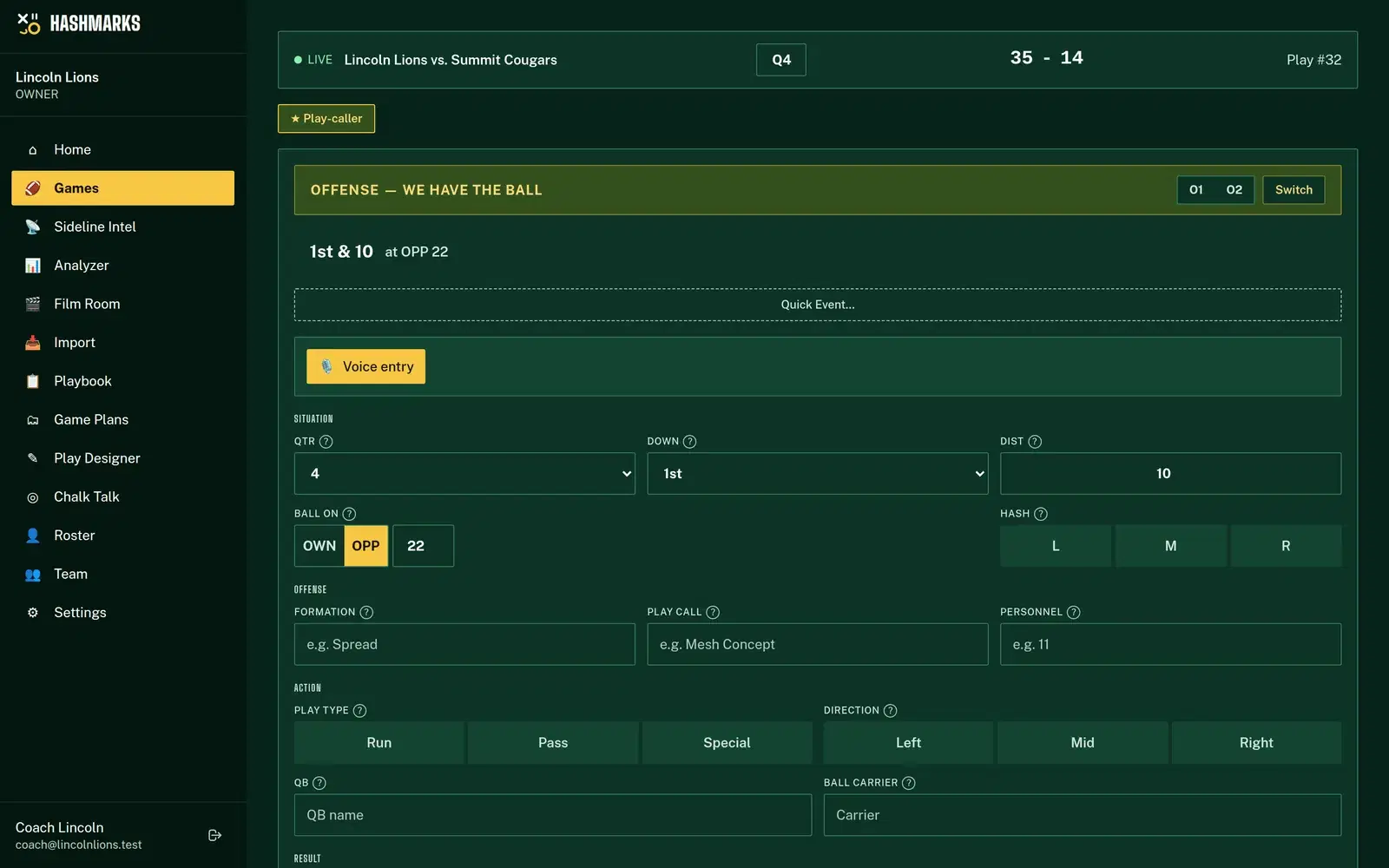
- Request free access, then add the game.
- Log the plays: chart them live with the Play Tracker, import a breakdown CSV, or dictate them in Film Review.
- Upload the film from Import → Video Import: pick the game, the angle and the clip files.
- Open Film Room from the menu and choose the game. Clips link to plays automatically. Use Sync plays to film if they don't line up.
- Filter, draw, comment and build playlists for your position groups.
Keep the keyboard shortcuts handy: Space to play or pause, ←/→ for a frame, N/P for the next or previous clip, F for full screen, D to draw.
Using Hudl for video?
Keep it if it works for your program. Hashmarks is free, imports your Hudl breakdown CSV and keeps every column, and adds live charting, sideline tendencies, play design and quizzes. Whether you move film study over too is up to you. For a side-by-side, see the comparison on our home page.
Break down your next game free
Film study should be about teaching, not typing. Request free access, chart Friday's game, upload the clips on Saturday and have your playlists ready for Monday's meetings.