Help Center

Game Plans

Copy sections of your playbook, draw them against this week’s opponent, and share them with the team.

Overview

A game plan holds copies of playbook plays with an opponent’s defensive looks applied. Your playbook is never changed — edit the copies freely, and promote a copy back to the playbook when it earns a spot. Open them from Game Plans in the menu.
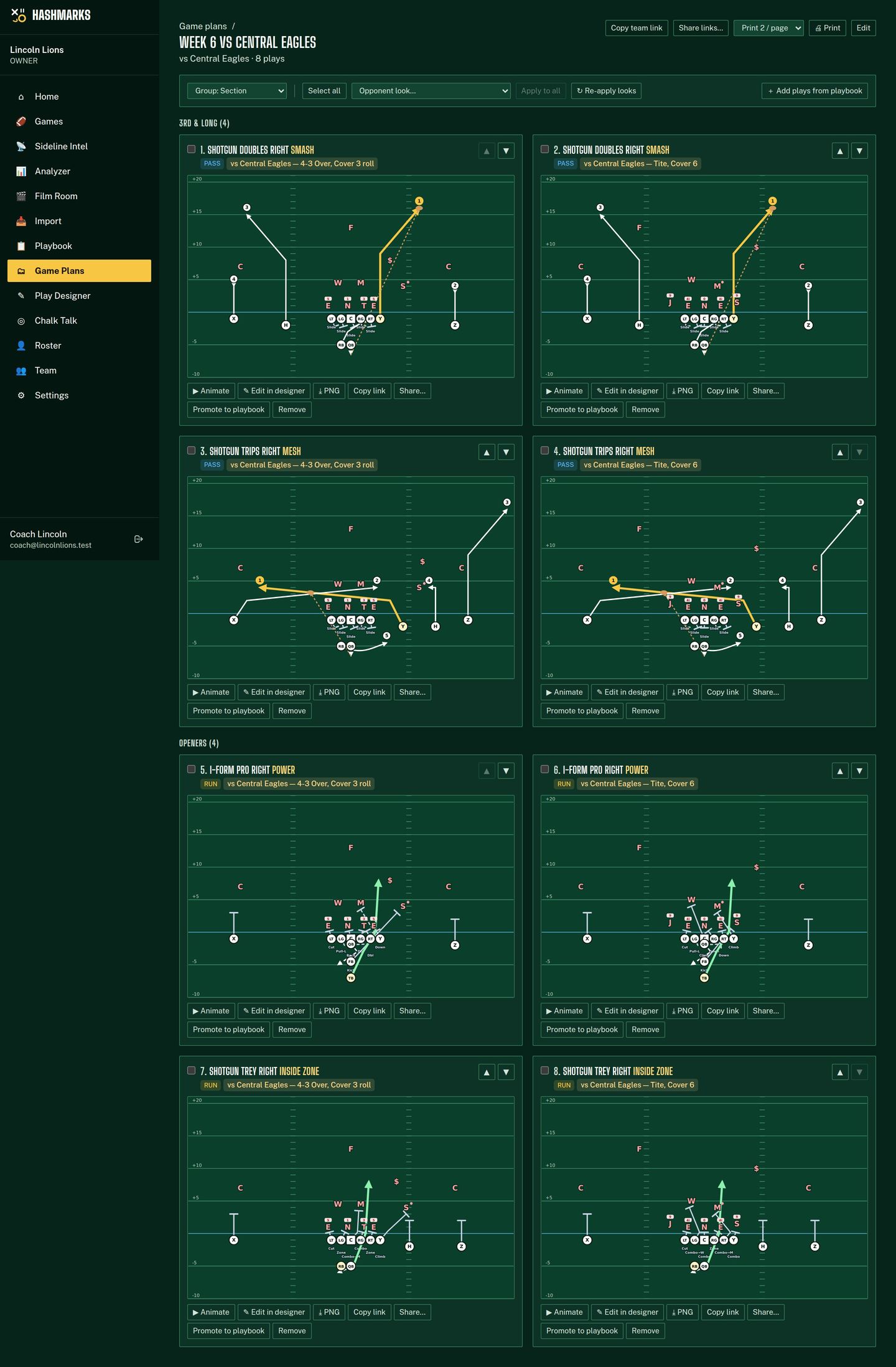
Game plan
Four plays cloned under two Central Eagles looks — one labelled copy per look, grouped by section.

Building one

1

Save the opponent’s looks

In the Play Designer’s Defense tab pick the front and coverage, drag defenders to where this opponent aligns, and choose “Save current”. Name it (“Central Eagles — Tite, Cover 6”), pick the opponent (your games and scouting games are suggested) and tag it.
2

Pick plays on the Playbook page

Group by formation, play type or tag, then tick plays — or the box next to a section heading to take the whole section.
3

Clone to game plan…

Choose an existing plan or create one (optionally linked to a game), and tick one or more looks. With two looks you get two labelled copies of each play.
4

Work the plan

Apply a look to all or the selected plays, reorder with ▲▼, remove copies, open any copy in the designer (it saves back to the plan), export a PNG, or print (1 or 2 plays per page).

💡Edited a look?

Copies keep the version of the look they were cloned with. After you change a look (open a copy, adjust the defense, then “Update look”), press Re-apply looks in the plan to push the new version to every copy that uses it. Re-apply replaces hand-made defensive tweaks on those copies; routes and blocking scheme are kept.

Sharing with the team

Copy team link (plan) and Copy link (single play) give a normal in-app address — anyone signed in to your team can open it. For players or helpers without an account, a coach can create a read-only share link under Share links…: the whole plan or one play, expiring after 1–90 days (14 by default), with or without coach notes. The page shows only that plan’s plays with playback — no roster, emails or other plans — and search engines are told not to index it.

⚠️Copy it when you create it

For safety the app stores only a fingerprint of each link, so the full link is shown once, right after you create it. The list shows each link’s label, expiry and view count; Revoke stops a link immediately (anyone opening it sees “not found”). Only coaches, admins and owners can create or revoke links.