Play Tracker
Log plays in real time during games with smart auto-advancing fields.
Overview
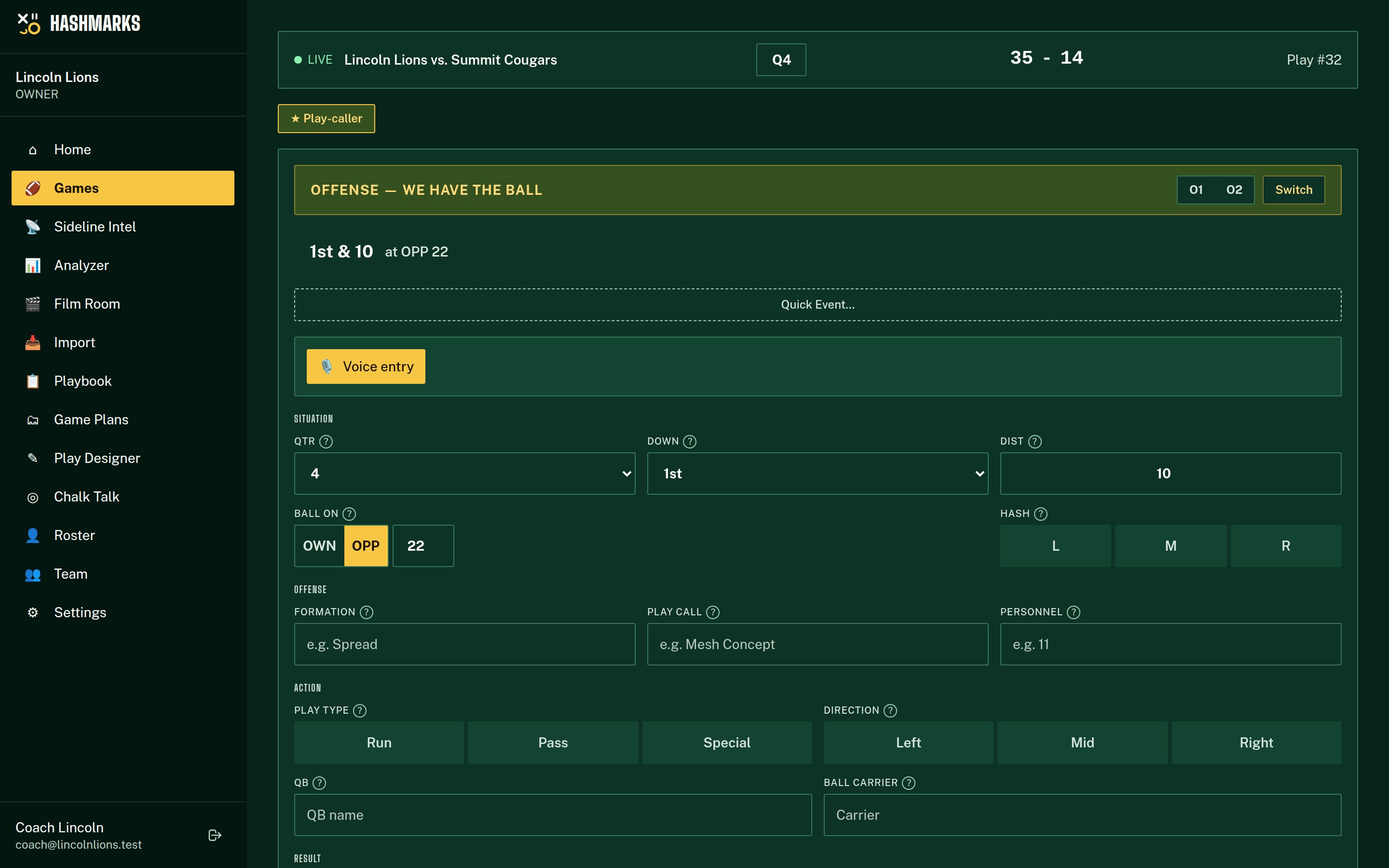
The Play Tracker is a mobile-friendly form designed for fast data entry during live games. After each play, it automatically advances the down, distance, and yard line based on the play result — so you can focus on watching the game instead of doing math.
How to Use It
Open a game and go live
Set the starting field position
Log each play
Submit and auto-advance
Add optional detail
What You See on Screen
Play Counter
Current play number displayed at the top of the form.
Situation Bar
Large-text display of down, distance, and yard line.
Score Bar
Live score for both teams, updated after scoring plays.
Play Log
Scrolling list of all logged plays below the form. Tap any play to edit.
Handling Special Situations
Penalties
Toggle the penalty flag, enter the type, team (US/THEM), yardage, and result (accepted/declined/offset). Auto-advance accounts for penalty yardage.
Turnovers
Set the result to "Interception" or "Fumble Lost". The drive will end automatically in the analysis.
Scoring Plays
Set the result to "Touchdown", "Field Goal", or "Safety". Update the score bar manually after the PAT/2-pt attempt.
Offline Mode
The tracker works offline using a service worker. Data syncs automatically when connectivity returns — great for stadiums with poor cell service.
💡Speed Tips
- Start with just Formation, Play Type, and Gain/Loss — you can always add detail later by editing plays.
- Use the personnel field (11, 12, 21, etc.) for deeper formation analysis.
- Multiple collectors can log simultaneously — the system merges data by play number.
- Plays are never renumbered after deletion, preserving the collector attribution log.
Troubleshooting
Auto-advance put the wrong yard line
Manually correct the yard line before logging the next play. This can happen on boundary plays near the goal lines.
I logged a play with wrong data
Tap the play in the log below the form to edit it. All fields can be corrected after the fact.